

Help material about the library: frequently asked questions, manuals and more...
If you have questions or issues with the eLibro platform, send an email to Support or Help.
System Requirements
Systems: Windows / OS X
Browsers: IE, Firefox, Chrome, Edge, Opera, Safari
Mobile devices: eLibro Reader App, available in the Android / iOS store
eLibro Access Types
1. Username and Password Access
- Each user has their own username and password (their "personal account") which, once created, will allow them to access the eLibro site from anywhere.
- This user account constitutes the personal shelf that will allow them to use all the tools within the platform.
- To create a personal account, the user must be authenticated by IP, by referred URL, be approved by an administrator, or an administrator can pre-create accounts for users from the administrator module designed for librarians.
- Please note that along with this option we can also authorize the institution's IP ranges and/or certain reference URLs to allow users access to book searches before logging in. We call this "anonymous access".
2. IP Authentication
-
IP authentication may require:
- Only the first time – so that the user can create a personal account. Then (by default) the user will be able to access the site from anywhere by simply logging in with that username and password.
- Or, the user can be required to always access through authorized IP addresses (or the authorized reference URL)
- To add or change IP addresses, please contact Support / Help
3. Referred URL
- If your institution's website offers a secure login for its users (virtual classroom, virtual campus, or other), we can authorize them to access the eLibro platform through a direct link from your website.
- You must place the direct link to eLibro on one or more of your web pages that can only be accessed after logging in through your website's secure connection.
- Send the eLibro Support / Help department the URL of the web page where the link has been placed so that we can authorize access for all users coming from that URL.
-
Referred URL authentication can be:
- Only the first time - so the user can create a personal account. Then (by default) the user can access the site from anywhere by simply logging in with that username and password.
- Or, the user can be required to always access through the referred URL (or authorized IPs, etc.).
Personal Account or Personal Shelf
What is a personal account or personal shelf?
To use some eLibro features, you must first log in with your personal account. These features include:
- Download a page range or chapter.
- Download an entire book for offline reading through the eLibro App.
- Save links to books of interest in your personal bookshelf.
- Write notes within books.
- Highlight paragraphs in color within books.
- Create folders (in your personal bookshelf) that will allow you to organize books of interest.
- Share folders or send information by email with links to the books you have saved.
Create a personal account on eLibro
- Go to your eLibro site (consult with your institution's library for the access URL).
- Click on the "Sign Up" link located in the upper right menu. If you don't find the link, your eLibro site uses a different type of access – contact your librarian or write to us (from the menu on your left)
- Follow the instructions to create your account. (Enter a valid email; if you forget your password, you can only recover it through that email address.)
What if the option to Create Personal Account doesn't appear?
If you don't find the link to create an account, your eLibro site uses a different type of access – Contact your librarian or write to us at Support / Help.
If when you try to log in as a user within eLibro, you are redirected to the library's authentication page, it means the eLibro site is configured with:
- EZproxy
- Shibboleth
- OpenAthens
- SAML
Forgot your password?
- Go to your eLibro site (consult with your institution's library for the access URL).
- Click on "Log In" (upper right)
- Then go to the "Forgot your password?" option
- Enter the email address you used to create your account.
- Click the button: "Send email"
- You will receive instructions at your email address.
If instead of the login screen you are redirected to your library's page, the site uses a custom login.
Contact your librarian or write to us at Support / Help.
Searches

Starting a new search within eLibro is very easy. You can do it from the Search box at the top of the page, or from the Advanced Search, Filtered Search, Search by Topics, or Collections links.
You can refine your search using filters and a wide range of criteria including:
- Keyword and full text
- Title
- ISBN
- Author
- Publisher
- Publication year
- Collection
- Language
- and more…
Document Detail Page
The details page provides information about the number of copies the institution has, copy/print page permissions, and whether the book is available for online reading and/or full download.
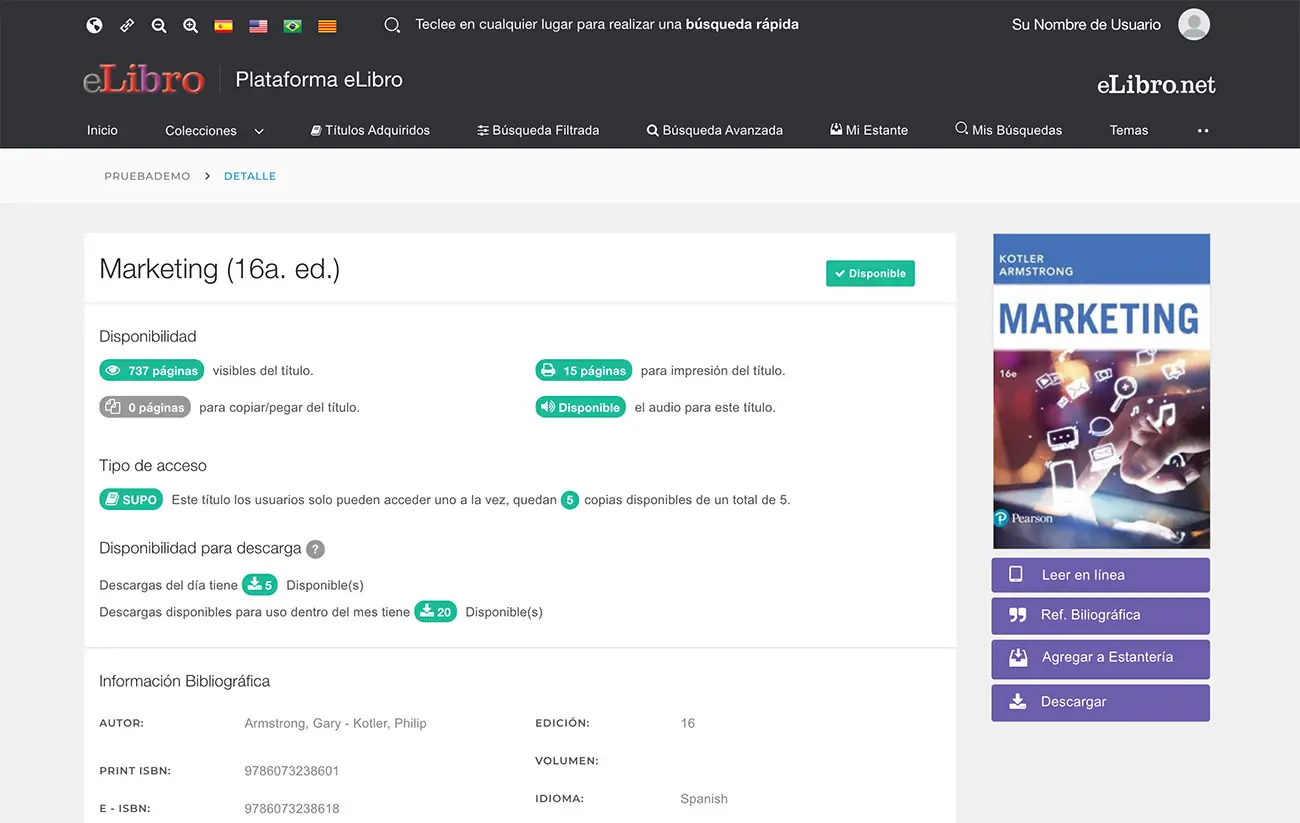
In most cases, many or all books have unlimited access.
However, there may be cases where books have limited user access and all copies could be in use and/or could be in loan mode (fully downloaded for offline reading) reaching the maximum number of available books.
Online Reader / Toolbar
When opening books, the table of contents will be displayed on the left and you will be able to work with different tools within the document.
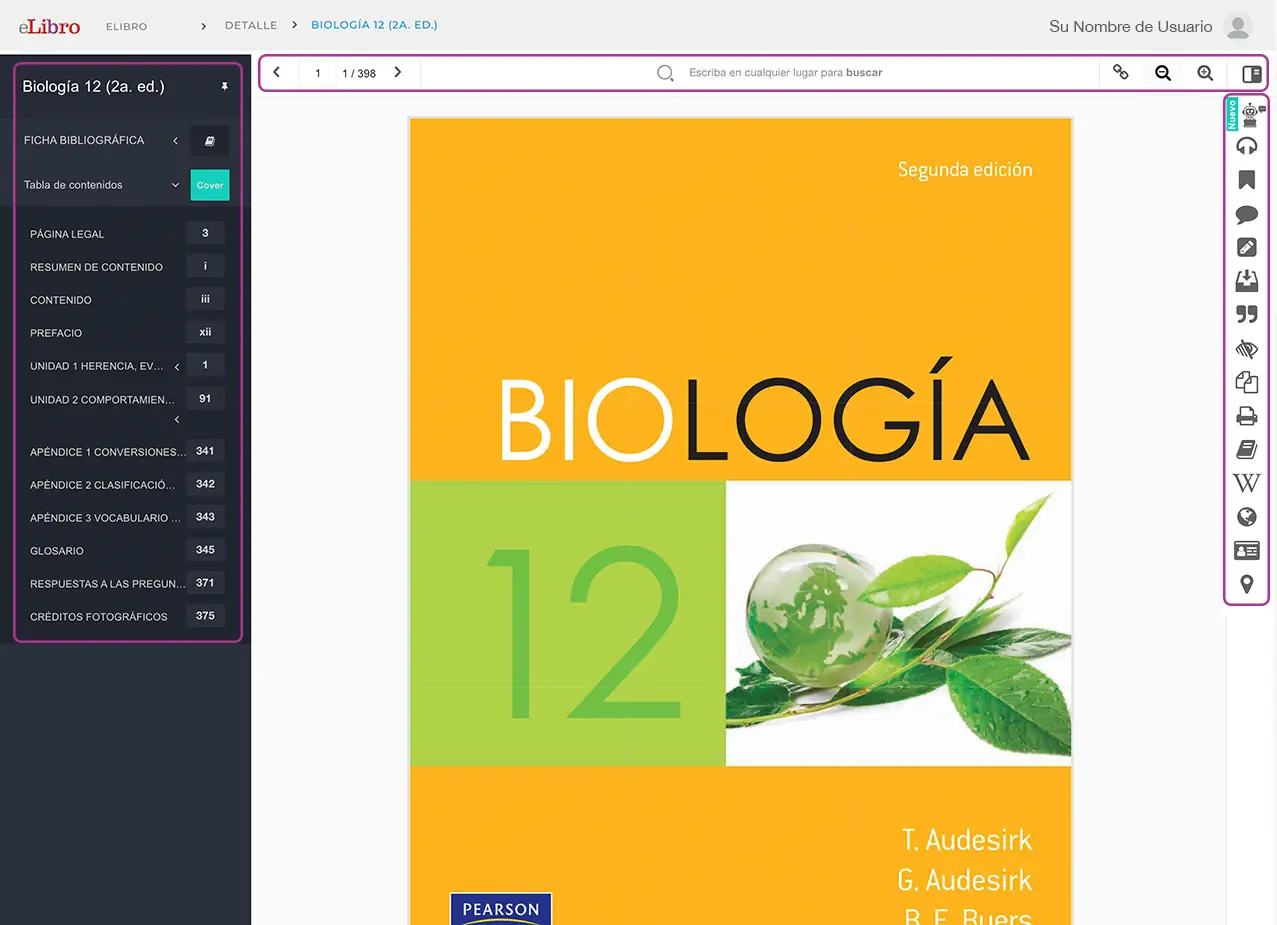
Left Bar: table of contents or index.
Top bar: pages (forward or backward), search within text, zoom, get title link, notes.
Right bar: Ask eLi (Artificial Intelligence), listen to audio, add bookmarks, add notes, highlight, add to bookshelf, get bibliographic reference, view in summary mode, copy, print pages, search in dictionary, in Wikipedia, translate, search biographies and maps.
eLi / Artificial Intelligence
It is at the top of the toolbar. It is gray in color, but if it appears in green, it means that this title has questions from other users that are answered by eLi and you can take advantage of that.
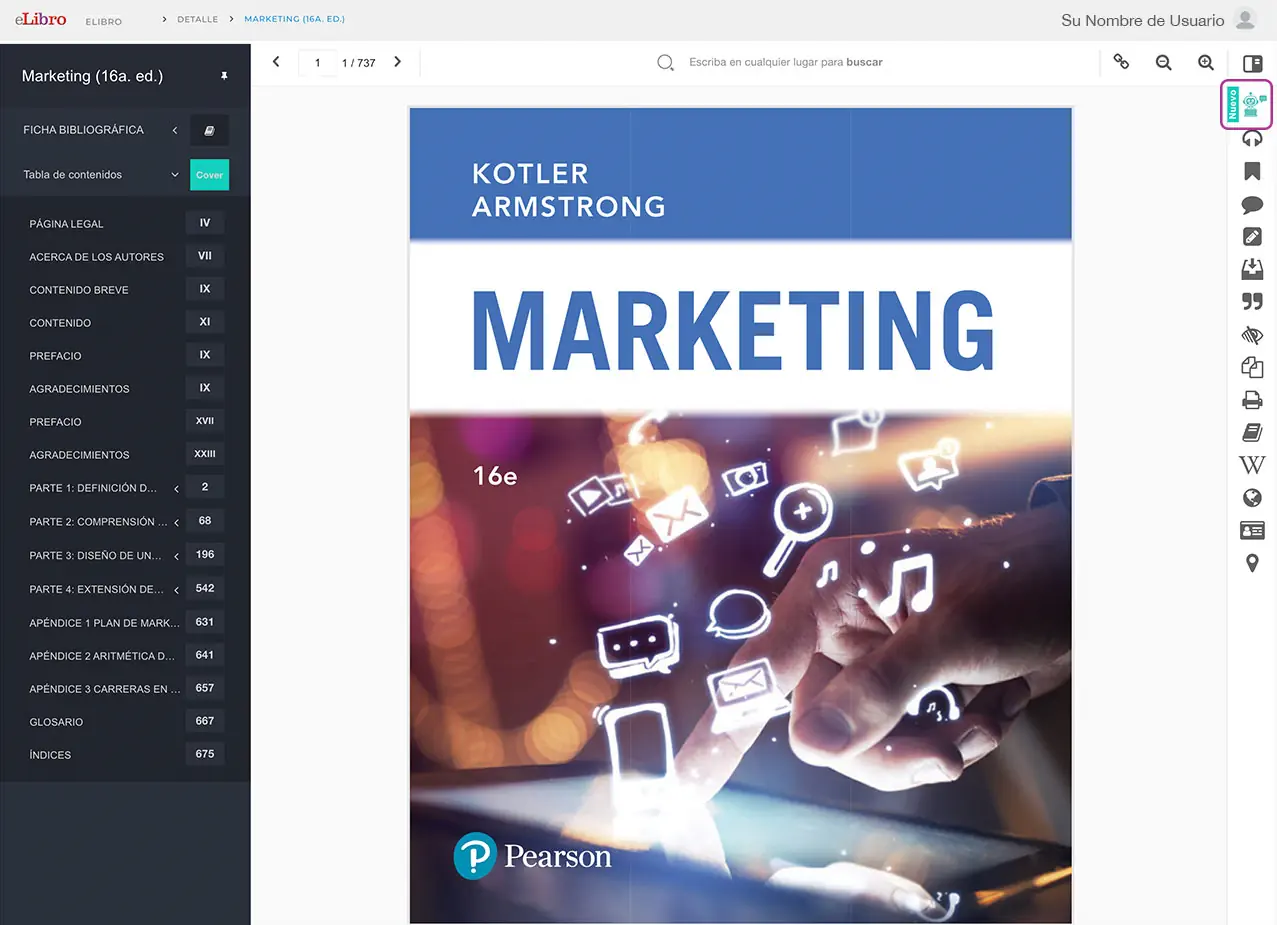
eLi Icon: clicking on it displays the tool allowing you to ask questions or access previous queries.
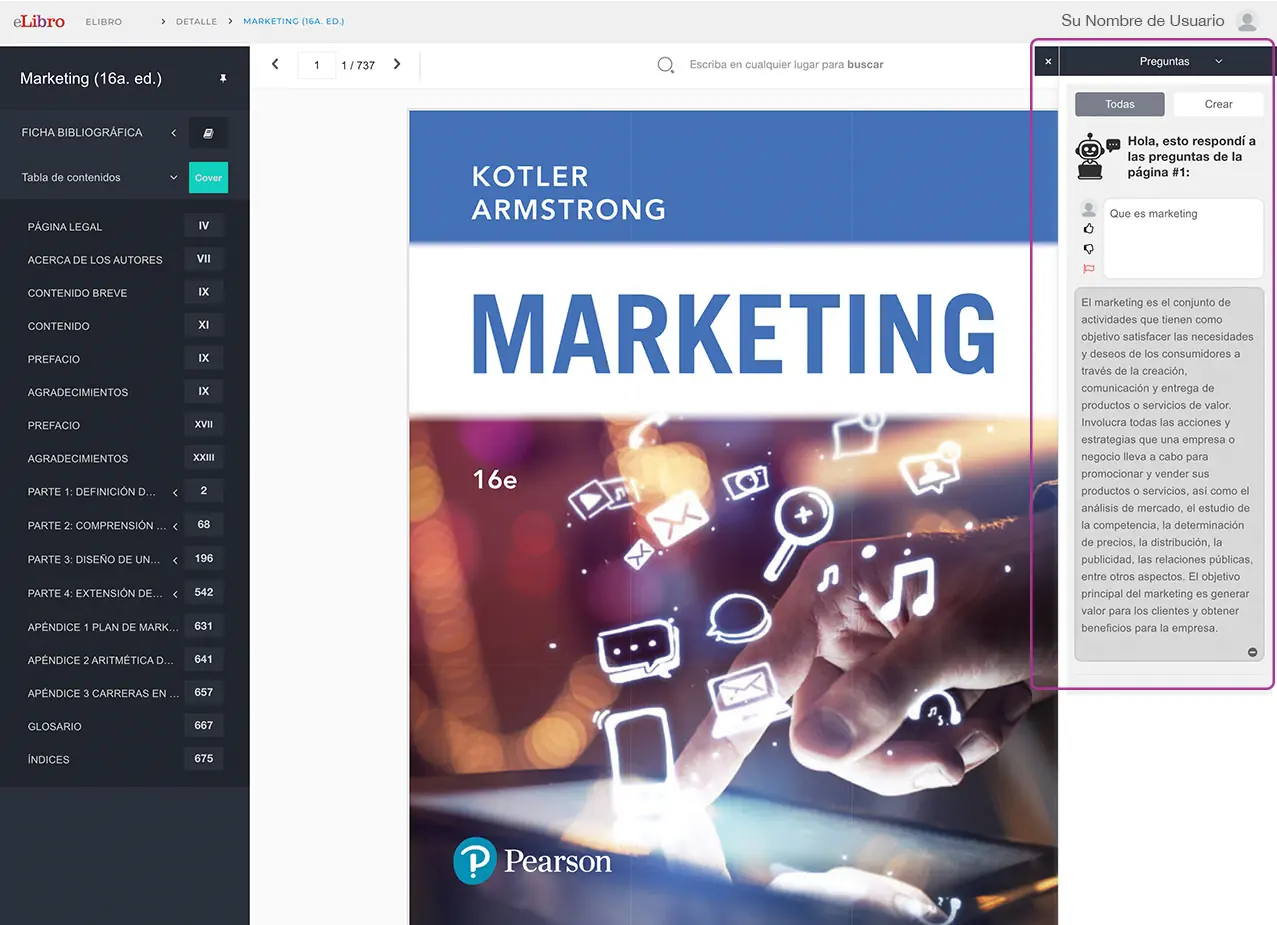
eLi: Displays answers to previous questions or the possibility to create new queries.
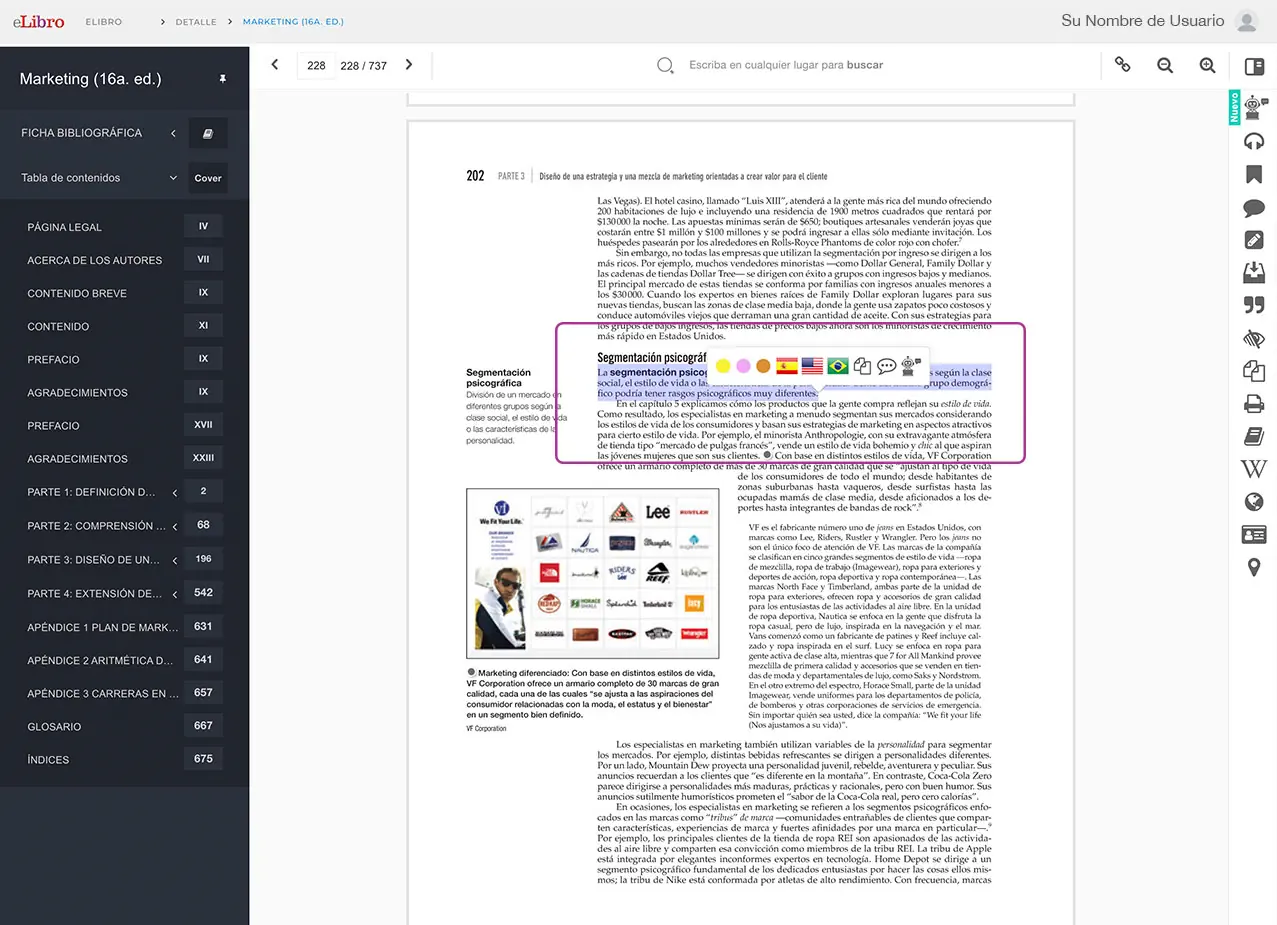
Ask eLi: When selecting a word or phrase, a pop-up menu appears where, in addition to highlighting or translating, you can click on the eLi icon and make your query from what is highlighted.
Document Downloads via App
eLibro's own free application available for download from the Digital Library.
1. First, you must place the title to download in your Personal Shelf to find it within the application.
2. Then, when clicking on "Download", a banner will appear offering to download the new application.
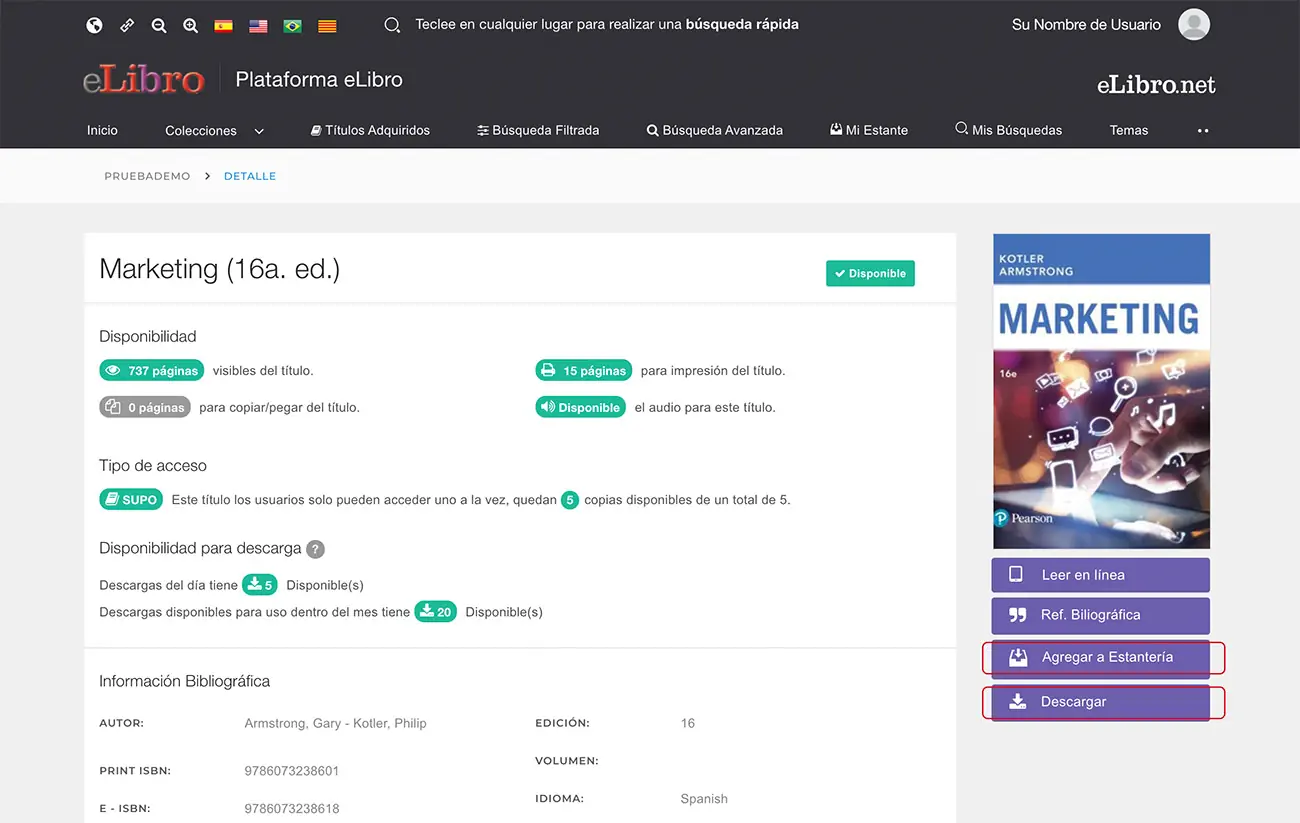
3. Select the operating system of the device on which you want to download the application: smartphone, tablet or computer.
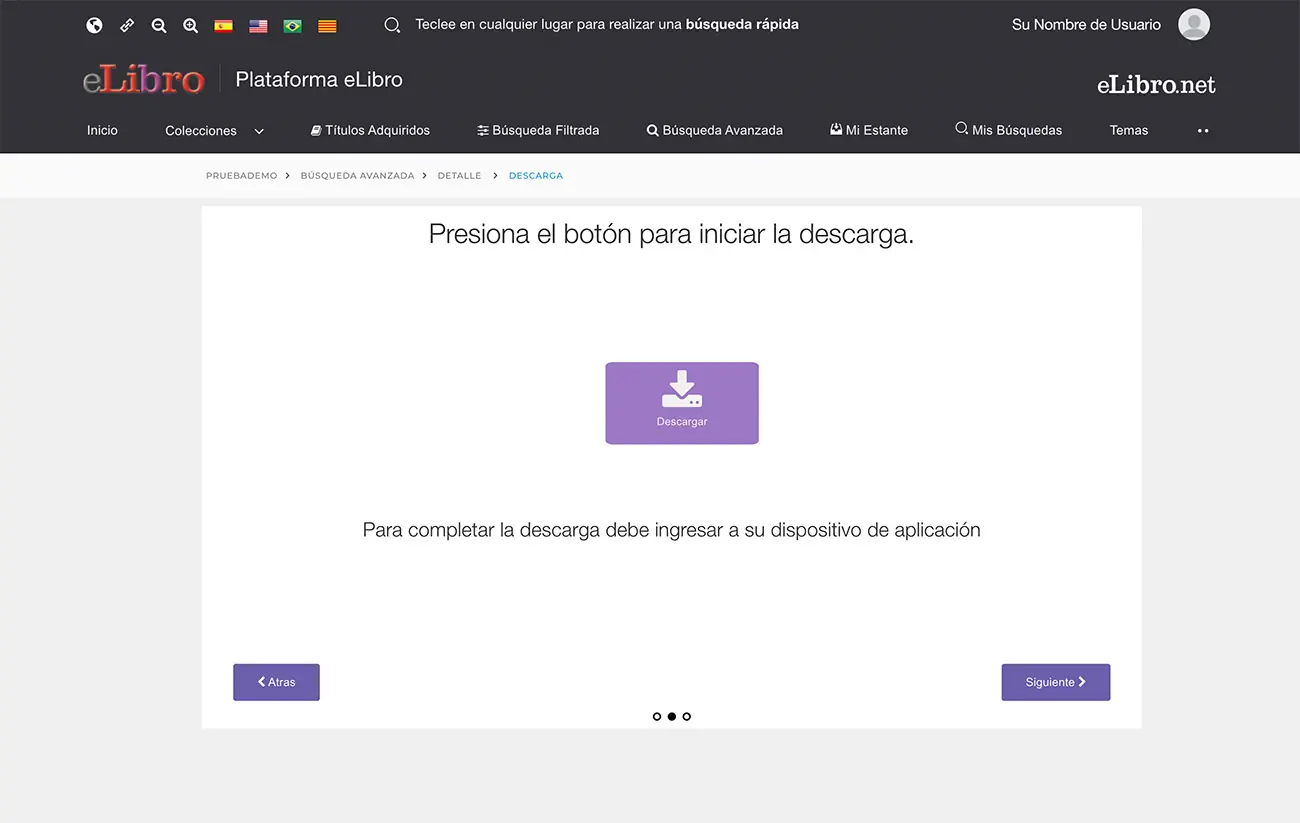
4. If you already have the eLibro App installed, proceed with the on-screen instructions.
Administration Module / Administrator User
Librarians with privileges will be able to:
- Export the complete list of titles they have enabled.
- Change the number of days for book loans.
- Obtain usage reports.
- Customize the site with the institution's logo.
- Keep track of users who use the eLibro platform. Add, delete, or block accounts whenever needed.
Before deleting or adding a user, you must contact ayuda@elibro.com
Live Training
Learn about using our Platform and App, downloading titles and other features.
- Training conducted in Spanish.
- Prior registration required.
- Session duration: 30 minutes.
- For students, professors, researchers, librarians.
- Objectives: search, create an account, highlight, share folders, read online, download, etc.
- Administrator user tools.
- Certificate of attendance provided.
- Check the calendar each month.
- Register here: elibro.es
Our Products
A wide selection of academic content grouped by Collections, which are designed to meet the educational objectives of any institution. The same applies to audiovisual material.
Click on the images for more information.


